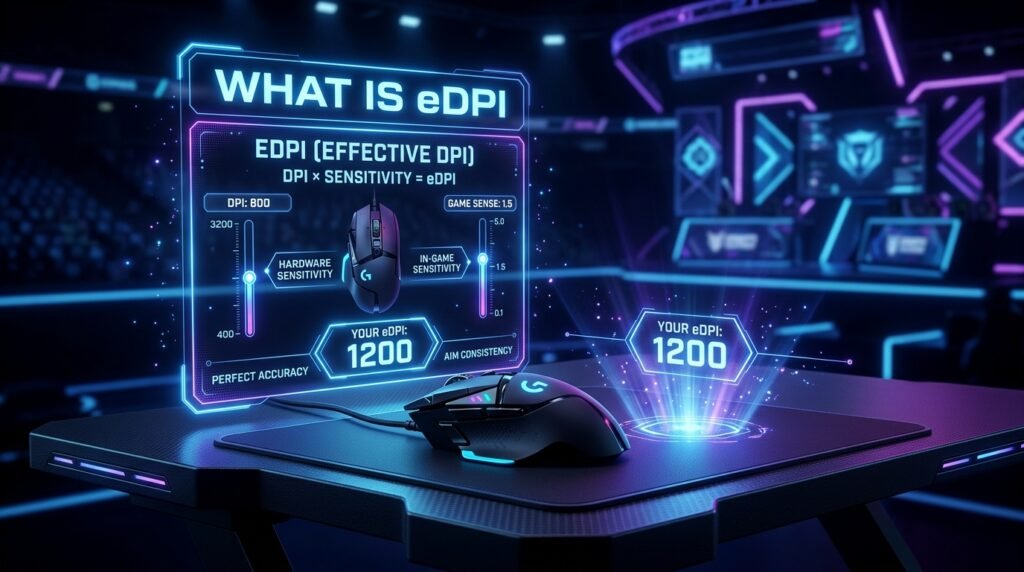
If you’ve spent any time in Valorant, CS2, or Apex Legends forums, you’ve probably seen players quoting a number like “eDPI 320” or “my eDPI is 400” like it’s some kind of secret code. It isn’t a secret — but it is one of the most useful numbers a competitive FPS player can know about their own setup.
In this guide, we’ll break down exactly what eDPI is, how to calculate it, why it matters more than raw DPI alone, and how to use it to carry your aim between games. By the end, you’ll be able to calculate your own eDPI in seconds using our free eDPI Calculator — just plug in your mouse DPI and in-game sensitivity and get an instant result.
What Does eDPI Actually Mean?
eDPI stands for effective DPI (sometimes written as “effective dots per inch”). It’s a single number that represents your true mouse sensitivity by combining two separate settings:
- Mouse DPI (Dots Per Inch) — a hardware setting on your mouse that determines how many “counts” it reports per inch of physical movement.
- In-game sensitivity multiplier — a software setting inside each game that scales how far your crosshair moves for a given amount of mouse input.
On their own, neither number tells you much. A DPI of 800 could feel completely different in two different games depending on the in-game sensitivity slider. eDPI solves this by combining both into one comparable value.
The eDPI Formula
The formula is simple:
Mouse DPI × In-Game Sensitivity = eDPI
For example:
- Mouse DPI: 800
- In-game sensitivity: 0.4
- eDPI: 800 × 0.4 = 320
That “320” is now a portable number. It represents exactly how much your crosshair moves for a given physical mouse movement, independent of which specific DPI/sensitivity combination you used to get there.
Instead of doing this math by hand every time you switch games or tweak settings, you can just drop your numbers into our eDPI Calculator and get the result instantly — along with comparisons to common pro player ranges.
Why eDPI Matters More Than Raw DPI Alone
This is the part most beginners get wrong. A lot of new players assume “higher DPI = better aim” or copy a pro player’s DPI setting without checking their in-game sensitivity too. That’s a mistake, because DPI by itself is meaningless without knowing the sensitivity multiplier attached to it.
Here’s a real example of why this trips people up:
| Player | Mouse DPI | In-Game Sens | eDPI |
|---|---|---|---|
| Player A | 400 | 0.8 | 320 |
| Player B | 1600 | 0.2 | 320 |
Player A and Player B have wildly different DPI settings — 400 vs 1600 — but their actual in-game feel is identical because their eDPI is the same. If Player B copied “just the DPI” from a pro guide without adjusting sensitivity, they’d end up with a completely different (likely far too fast) aim feel.
This is why experienced players and coaches almost always talk in terms of eDPI, not raw DPI, when comparing settings or giving advice.
cm/360: The Other Half of the Picture
eDPI tells you your sensitivity in relative terms, but many competitive players also track a related metric called cm/360 — the physical distance (in centimeters) your mouse needs to travel across your mousepad to do a full 360-degree turn in-game.
While eDPI is a pure math formula, cm/360 also factors in your mouse’s actual DPI accuracy and your monitor/game resolution, making it a more “real world” measurement. Many pro settings databases list both eDPI and cm/360 side by side because they answer slightly different questions:
- eDPI — “How does my sensitivity compare mathematically to another setup?”
- cm/360 — “How much physical desk space do I need to turn around?”
For most players just getting started, eDPI is the easier number to calculate and compare, which is why it’s become the standard shorthand across the FPS community.
Why Every FPS Player Should Know Their eDPI
1. It Lets You Transfer Muscle Memory Between Games
If you play multiple FPS titles — say, Valorant and CS2, or Apex and Fortnite — each game uses a different sensitivity scale internally. A “sensitivity of 2” in one game is not the same as a “sensitivity of 2” in another. This is exactly why our Mouse Sensitivity Converter exists: to translate your exact aim feel across games using eDPI as the common reference point.
By keeping your eDPI consistent (or properly converted) across every game you play, your muscle memory transfers cleanly. A 90-degree flick feels the same whether you’re in Valorant or CS2, which means less time re-adjusting and more time focusing on mechanics and game sense.
2. It Makes Comparing Pro Settings Actually Useful
When you look up “what sensitivity do pros use,” you’ll find huge variation in raw DPI — some pros play at 400 DPI, others at 3200 DPI. But when you convert those to eDPI, you’ll notice most competitive FPS players cluster in a fairly narrow eDPI range (commonly somewhere between roughly 200–400 for tactical shooters like Valorant and CS2, though this varies by game and playstyle). Comparing eDPI instead of raw DPI gives you an apples-to-apples view of what’s actually competitive.
3. It Helps You Diagnose Your Own Aim Issues
If your aim feels inconsistent, one of the first things worth checking is whether your eDPI is unusually high or low compared to typical ranges for your game. A wildly high eDPI (very sensitive) makes fine tracking difficult, while a very low eDPI (very slow) can hurt your ability to react to fast flicks. Knowing your number gives you a concrete starting point for tuning, rather than guessing.
4. ADS and Hipfire Sensitivity Add Another Layer
In many shooters — especially those with zoom optics and scoped weapons — your effective sensitivity changes again when you Aim Down Sights (ADS). Games often apply an additional multiplier on top of your base sensitivity when scoped in, and high-zoom scopes apply even steeper multipliers. This means your “true” eDPI while scoped in can be very different from your hipfire eDPI. Advanced players calculate both separately to make sure their aim feels consistent whether they’re hipfiring or scoped in on a sniper.
How to Calculate Your eDPI Right Now
You don’t need a calculator or spreadsheet for this. Here’s the fastest way:
- Open your mouse software and check your current DPI setting.
- Open the game you play most and check your in-game sensitivity value.
- Multiply the two numbers together.
- Or, skip the math entirely and use our eDPI Calculator — enter your DPI and sensitivity, and get your eDPI instantly, along with a sense of where it falls relative to common competitive ranges.
If you want to double-check that your mouse is actually reporting the DPI it claims (many mice are inaccurate out of the box), run our DPI Analyzer first. Combining a verified real DPI number with your in-game sensitivity gives you the most accurate eDPI possible — rather than trusting the number printed on the box.
Common eDPI Mistakes to Avoid
- Copying a pro’s DPI without their sensitivity. As shown above, DPI alone means nothing without the matching in-game sensitivity.
- Ignoring Windows sensitivity/pointer settings. If you’re using Windows Pointer Precision or a non-default Windows pointer speed, it can distort your effective sensitivity outside the game itself.
- Forgetting to recalculate after a DPI change. If you bump your mouse DPI up or down for other games or desktop use, remember to update your in-game sensitivity to keep your eDPI (and your muscle memory) consistent.
- Not accounting for ADS multipliers. If a game applies zoom sensitivity multipliers, your scoped-in eDPI is different from your hipfire eDPI — check both if precision aiming matters to your gameplay.
Final Thoughts
eDPI isn’t a magic number that will instantly fix your aim, but it’s the single most useful reference point for understanding, comparing, and transferring your mouse sensitivity across the games you play. Once you know your eDPI, you can:
- Compare your settings meaningfully against pro players
- Keep your aim feel consistent across multiple titles
- Diagnose whether your sensitivity is contributing to inconsistent aim
- Fine-tune ADS/scoped sensitivity separately from hipfire
Ready to find your number? Head over to our free eDPI Calculator and get your exact eDPI in seconds — no sign-up, no downloads, just enter your DPI and sensitivity and go.